
1. Check the prerequisites
You need Windows x64, .NET Framework 4.8 and a compatible 64-bit application hosting the Visual Basic Editor. Monaco needs the Microsoft WebView2 Runtime. Git workflows also need Git for Windows.
AI providers have their own account, CLI or server requirements. VBAi does not install provider accounts or change your application's macro-security settings.
Check operation-specific compatibility2. Install the add-in
Download VBAi-Setup-win-x64.exe from the 1.0.0 release. Save your work and close applications hosting the VBE before running Setup.
Setup installs under %LOCALAPPDATA%\Programs\VBAi, registers the add-in and includes the offline manuals. A one-time UAC prompt may be needed for the shared chat-control mapping; use the same Windows account.
Version 1.0.0 is unsigned
The installer and uninstaller have no Authenticode signature. Windows may show an unknown-publisher or SmartScreen warning. The published checksum helps check file integrity; it does not authenticate the publisher. The automatic updater requires a signature, so install this version manually.
3. Connect an AI provider
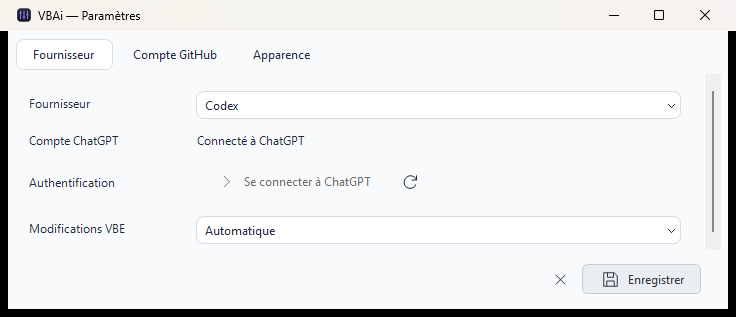
Restart your host application and open its Visual Basic Editor. Open VBAi settings to select and configure a provider. Authentication, API-key and endpoint fields depend on that selection.
Codex uses its CLI-managed ChatGPT connection; an OpenAI API key is not required for that integration. Your account still needs the appropriate provider entitlement. Model and reasoning choices belong in the chat, rather than the settings form.
4. Start with a project copy
Select the intended VBA project and begin in Discussion mode. Ask the assistant to explain a procedure before requesting edits. Use Agent mode when you want it to act, with an approval policy appropriate to the work.
Review the changes, compile and test in the host, and save the document through the application. Git commits version exported sources separately. The offline manual is available from Help / ? → VBAi · User guide.
Follow the illustrated workflowUninstall without deleting your projects
Save your work and close VBE hosts. In Windows Settings → Apps → Installed apps, select VBAi and Uninstall. A Start menu uninstall entry is also available.
Removal preserves configuration, conversations, recovery data and user repositories. It checks deployment ownership before removing product registration. The installation guide explains retained shared registration and log locations.
Complete installation and removal guide